
How SparkGlim works
Choose your path. Know the next step.
Buying a ticket, supporting a nominee, giving to a cause or running a campaign? Start with the journey that matches what you want to do.
Choose your journey
Ticket buyers
Find the event. Arrive prepared.
Move from a real event listing to the ticket and attendee information required by its organizer.
Discover the right event
Search events and use the available country, category and date filters. Open the event’s own page for its artwork, venue, schedule and organizer information.
Browse eventsChoose an available ticket
Compare the ticket types on that event page, select an allowed quantity and review the displayed currency and conditions. Sold-out, invitation-only or restricted options follow their own rules.
Understand ticket typesComplete the attendee details
Fill in the event’s actual registration form, including per-attendee information when requested. Check your contact details before continuing; ticket access may depend on the same verified contact.
Read about registrationContinue to the existing checkout
For paid tickets, continue to SparkGlim Checkout and review its final charges and available methods. Checkout handles the payment outcome and return. Free registrations follow the existing server-controlled process.
Read about ticket paymentsKeep your ticket ready
Use the provided ticket-access route or supported Audience App with the purchase contact. Review your QR and event details before travelling; a ticket image does not bypass the organizer’s admission checks.
Explore the Audience App
If checkout is interrupted or you are unsure about a charge, keep its reference and use the existing checkout or support process before paying again.
Voters & nominees
Find the program. Support the right nominee.
Awards participation follows the selected campaign’s categories, nomination settings, dates and visibility rules.
Open the awards campaign
Browse public awards programs and open the correct campaign. Review the organizer, participation dates and any campaign-specific instructions before continuing.
Explore voting campaignsChoose a category
Use the campaign’s categories and search tools to narrow the list. Only public categories and approved public nominees should appear; some campaigns use a single category.
Understand categoriesReview or submit a nominee
Open the nominee’s actual profile and sharing link. Where public nominations are enabled, use that campaign’s nomination form and required fields. Submission does not automatically publish a nominee when approval is required.
Learn about nomineesChoose the supported voting option
Select the nominee, permitted quantity and required voter information in the existing campaign flow. For paid votes, continue to central checkout; its server-controlled outcome and return govern the transaction.
Review voting methodsReturn with the correct context
Checkout returns to the campaign or nominee according to the existing flow. Public vote counts and results appear only where the organizer permits them; an attempted or pending payment is not a confirmed vote.
Voting help
Awards and digital voting are distinct from SEVA, the separate pre-release product for supervised formal-election assessment.
Donors
Understand the cause. Choose your contribution.
A donation starts with a public fundraising story and the contribution options that campaign has enabled.
Find a public fundraiser
Explore fundraising campaigns and read the campaign’s purpose, beneficiary information, dates and public progress where available. A displayed goal is a campaign target, not a guarantee of an outcome.
Explore fundraisersReview the donation options
Choose an allowed amount and complete the requested donor fields. Anonymous giving is available only when the campaign enables it; do not assume a donation is tax-deductible.
Read about donation campaignsContinue to secure checkout
Use the campaign’s existing donation action to reach SparkGlim Checkout. Review its final charges and enabled payment methods. The server handles payment and the checkout return; this guide does not collect funds.
Donation paymentsKeep the campaign and reference
Follow the existing return and configured confirmation after checkout. For a delayed or unclear payment, keep the reference and contact support before repeating the donation. Public totals follow the campaign’s visibility settings.
Fundraising help
Campaign visibility, payment availability and financial records are server-controlled. A country filter or public progress bar does not establish settlement or withdrawal eligibility.
Creators & organizers
Prepare carefully. Launch through review.
Creators own campaign setup; assigned organizers and teams work within their granted access. Neither a new account nor a saved draft is automatically a published campaign.
Set up the correct account
Create a Creator account through the existing registration process, or use the invitation/login path for your assigned role. Complete the applicable verification and profile requirements; role selection alone grants no permissions.
Creator registrationChoose the campaign workflow
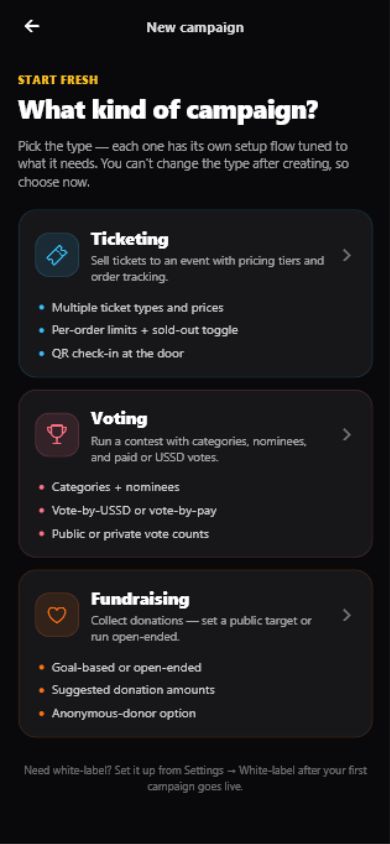
Use the ticketing, awards voting or fundraising setup appropriate to your service. Save a draft while preparing dates, ticket types, categories, nominees, beneficiary information or required forms as applicable.
Explore Creator AppReview, then explicitly submit
Check required fields, media rights, participation rules and selling currency. Use the existing Submit for review action when ready. Saving, previewing or submitting a draft does not automatically approve or publish it.
Awards setup guideOperate the approved campaign
After approval and the configured launch, share its actual public link. Assign only necessary team access, manage the available campaign tools and review activity through your authorized workspace.
Sign in to your workspacePrepare admission and reporting
For ticketed events, use supported server-connected scanning or manual code entry and plan for a reliable connection. Request reports through the existing tools; financial eligibility and confirmed records remain with SparkGlim Server.
Explore desktop operations
Vendor, volunteer, nominee and organizer access are separate workflows. Do not share your Creator password or assume a team member can access every campaign, report or balance.
Partners & developers
Agree the model before the integration.
Organization White Labeling, reseller operations and public developer access have different contracts and permissions. Choose the applicable branch below; you do not need all three models.
Define the partnership
Describe whether you are referring a customer, implementing a site or operating an approved service. Agree account ownership, customer support and handover responsibilities instead of assuming partner status grants account access.
Partner modelsFor your own organization
Review Organization White Labeling for supported branded pages and account-scoped integrations. Domain ownership, TLS readiness, products and provider configuration must be reviewed before launch; a DNS record alone is insufficient.
Organization White LabelingFor approved reseller operations
Use the separate reseller profile and member workflow. Reseller portal operations use session permissions; Organization HMAC credentials are not interchangeable and do not create arbitrary independent customer organizations.
Reseller modelFor a documented integration
Select the public, Organization or Reseller contract in the Developer Platform. Keep private integration credentials server-side, respect scopes and implement only supported routes. Public documentation is not access approval.
Developer getting startedRequest and validate the scope
Use the existing access request process with your requirements. Test approved domains, visibility, checkout handoff, return routes and support arrangements before sharing the experience; no activation is performed by this guide.
Request White Label access
Do not embed a checkout or promise universal iframe/plugin support. Follow the specific integration documentation and the approved account model.
Your country and language, without changing the rules.
Use the existing country and language controls for relevant content. A language change does not convert a price; a country choice does not enable a payment method. The campaign’s selling currency, permissions and configured checkout remain authoritative.
One platform. The right starting point.
Campaign pages contain the actual options, dates and requirements. If something is unclear, contact support with the public campaign link and a description. Keep passwords, OTPs and payment credentials private.