
At any busy event venue, from the vibrant conference halls of Accra to community spaces worldwide, the entry gate is the first critical touchpoint for your attendees. Managing a smooth transition from a bustling ticket line to the main hall requires a reliable, rapid verification system. Digital ticketing has largely replaced physical paper stubs, with Quick Response (QR) codes emerging as the standard tool for secure, contact-free check-ins. Understanding how QR ticket verification operates at the gate empowers event organizers, campus bodies, and creators to optimize their entry flows, protect their revenue, and minimize attendee wait times.
When an attendee presents a digital ticket purchased via SparkGlim events, a complex yet rapid sequence of actions occurs behind the scenes. This article explores the entire lifecycle of a QR ticket, detailing the standard workflow for gate staff, check-in states, and real-world fallback procedures when technical challenges arise. By preparing your team with proper knowledge and tools, you can ensure that gate operations run seamlessly from the moment doors open until the final guest is checked in.
Understanding the QR Ticket Lifecycle
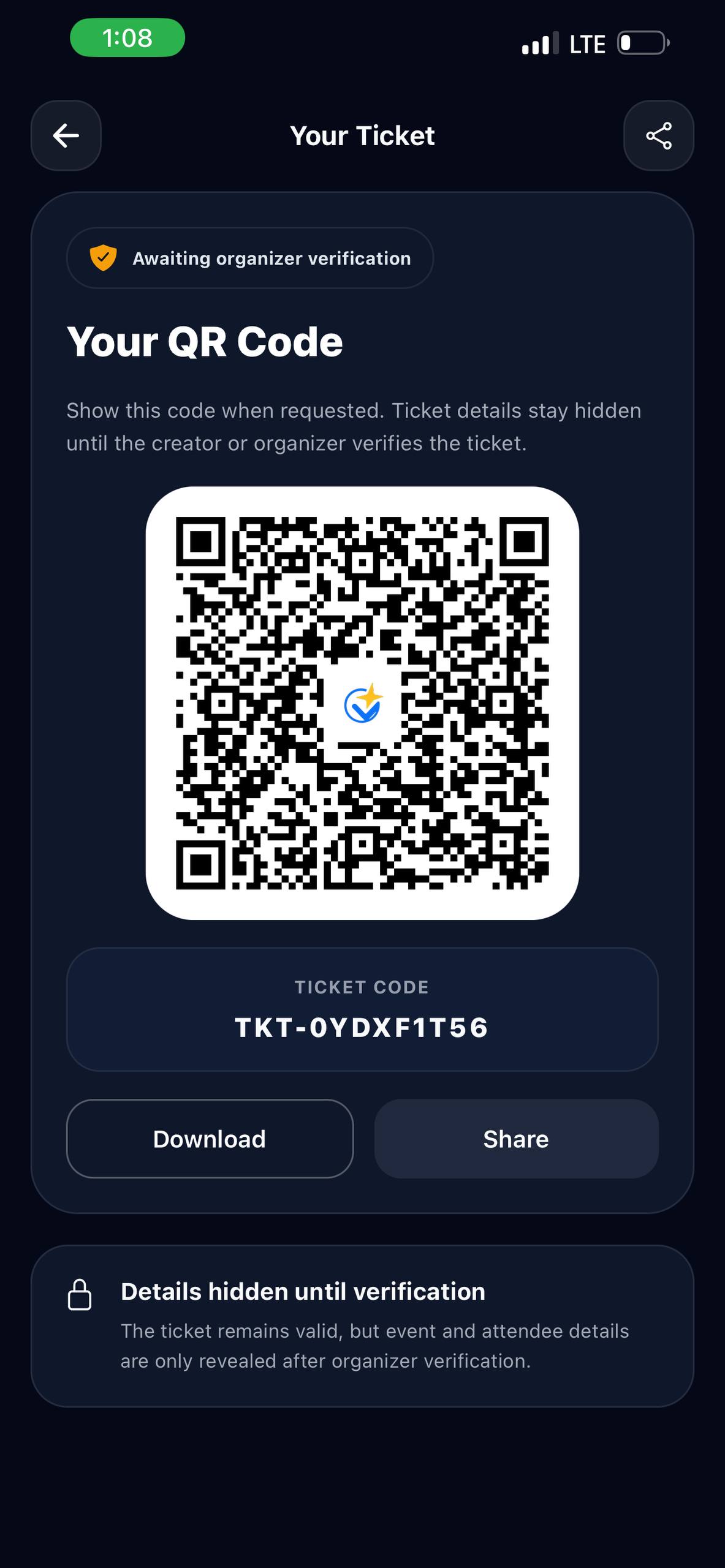
Each ticket begins its journey when an attendee registers or completes a purchase. Once the transaction is finalized—using local payment channels like mobile money in Ghana or standard debit/credit cards globally—the SparkGlim platform generates a unique payload. This payload is encoded into a high-contrast 2D matrix, commonly known as a QR code. This code is delivered to the user through their registered email, downloaded as a PDF, or made accessible directly within the SparkGlim app.
The QR code itself does not contain sensitive payment details or complex personal databases. Instead, it holds a secure, encrypted token that acts as a unique key pointing to a specific transaction record in the secure cloud database. This record contains the attendee's name, ticket type (such as General Admission, VIP, or Early Bird), and most importantly, its current check-in state.
Uniqueness and Database Synchronization
To prevent fraud and duplicate entry, each QR code generated is completely unique. The underlying system maps each token to a single ticket record. The moment a scanning device reads this token, it updates the central database to reflect that the ticket has been checked in. Because this synchronization happens in near real-time, the same QR code cannot be printed multiple times or shared with friends to gain multiple entries. Any subsequent attempt to scan the code will instantly flag the ticket as already used.
The Scanning Workflow at the Door
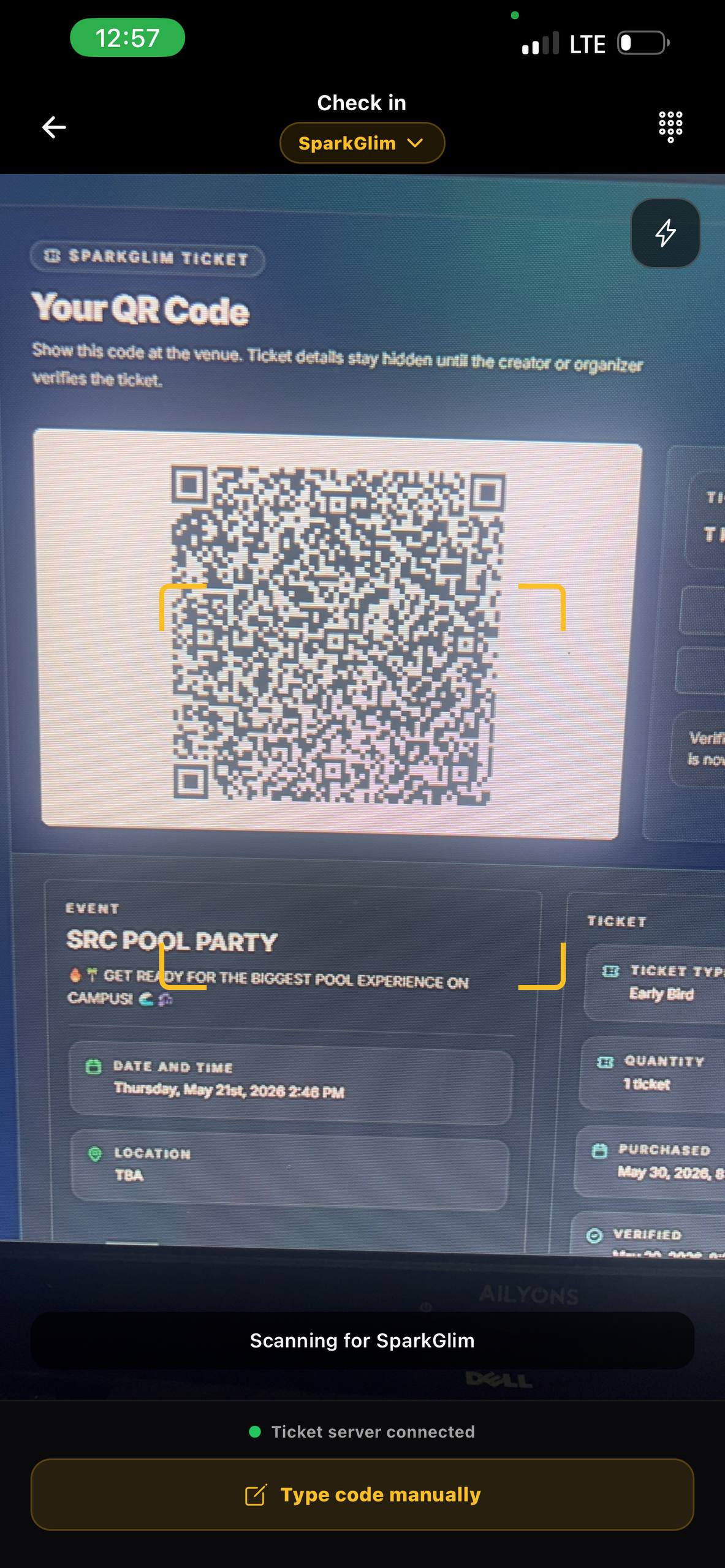
When gate operations begin, staff use camera-enabled devices equipped with the verification tool. For organizers utilizing SparkGlim, the gate crew can log into the dedicated mobile tool, the SparkGlim Creator Mobile App, which transforms standard smartphones into high-speed ticket scanners. Staff do not need expensive specialized hardware; standard Android or iOS devices with functional cameras are fully capable of scanning and processing tickets.
The scanner's camera captures the QR code image, decodes the token, and instantly transmits a verification query to the central server. The server cross-references this token with the campaign's active database. If the token matches an active ticket and its check-in state is unscanned, the server returns a successful response, changes the state to scanned, and records the precise timestamp of entry. This entire process typically takes less than a second under standard network conditions, allowing staff to move attendees through the queue rapidly.
Practical Staff Procedures and Check-In States
To ensure a professional and secure gate entry, staff must be trained to recognize and act upon different visual and auditory cues returned by the scanner. The scanning interface provides clear, color-coded feedback to indicate the status of each ticket:
- Valid (Green State): The screen flashes green, indicating a successful check-in. The staff member can wave the attendee through. The system has now locked this ticket from being used again.
- Duplicate (Red State): The system indicates that the ticket has already been scanned. This usually happens if an attendee shared their ticket copy with a friend, or accidentally printed or downloaded it twice. Staff should politely direct the individual to a resolution desk to verify identification.
- Invalid or Unknown (Yellow/Red State): The scanner does not recognize the code. This could mean the ticket belongs to a completely different event, a different date, or the QR code image is too distorted to read.
Fallback Handling and Offline Resilience
In many markets, including active event spaces across regional capitals, internet stability can fluctuate. A robust door management plan must account for temporary connectivity loss. When network drops occur, scanners may experience lag in contacting the central database. To handle this, the scanning software may support localized data caching. If offline verification is activated, the system checks codes against a locally cached list downloaded prior to gate opening. Once connectivity is restored, the scanned logs automatically sync back to the cloud to update the master check-in state.
If a ticket cannot be scanned due to a cracked phone screen or dead battery, staff should utilize the manual search function in their administrator dashboard. By searching the attendee's name, email address, or phone number, staff can manually update the ticket state to checked-in without delaying the entry process.
Checklist for a Seamless Entry Experience
- Prepare Hardware Early: Ensure all scanning phones or tablets are fully charged. Keep high-capacity power banks at each gate station.
- Adjust Screen Brightness: Instruct attendees in the queue to turn their phone screen brightness to maximum before reaching the scanner.
- Organize the Queue Flow: Use clear physical barriers or stanchions to separate VIP, General, and staff entry lanes.
- Train Staff on Customer Service: Ensure gate agents know how to handle duplicate tickets calmly without accusing attendees of fraud.
- Sync Databases Before Gate Opening: Perform a final database sync right before doors open to capture last-minute online purchases.
Frequently Asked Questions
How does a QR ticket prevent duplicate entries at the gate?
Every QR ticket contains a unique, encrypted identifier linked to a central database. Once the code is scanned for the first time, its database state shifts from unscanned to scanned. Any subsequent attempt to scan the same QR code will trigger an alert, preventing duplicate entries.
What happens if the event venue has poor internet connectivity?
If connectivity drops, staff can switch to offline scanning mode where scanners compare codes against a locally cached list. Alternatively, staff can cross-reference physical names or emails against an offline guest list exported before gate operations began.
Can one person hold and scan multiple tickets on a single phone?
Yes. If an attendee purchased multiple tickets, they can cycle through each unique QR code on their screen. The gate agent will scan each code individually to check in each member of the party.
What should staff do if an attendee's phone screen is cracked or won't scan?
If a screen is severely damaged or has low brightness, the QR code might be unreadable. In these scenarios, gate staff should look up the attendee's ticket manually using their name, phone number, or email address on the management tool dashboard.
Conclusion
A seamless gate entry sets the tone for your entire event. By understanding the mechanics of QR ticket verification—from initial generation to state changes and fallback options—you can deliver a professional experience that keeps your attendees safe and your queues moving. To start setting up secure, customizable ticketing for your next gathering, explore our SparkGlim events portal or download the SparkGlim Creator Mobile App to manage your gates with ease.
Article gallery
Frequently asked questions
How does a QR ticket prevent duplicate entries at the gate?
Every QR ticket contains a unique, encrypted identifier linked to a central database. Once the code is scanned for the first time, its database state shifts from unscanned to scanned. Any subsequent attempt to scan the same QR code will trigger an alert, preventing duplicate entries.
What happens if the event venue has poor internet connectivity?
If connectivity drops, staff can switch to offline scanning mode where scanners compare codes against a locally cached list. Alternatively, staff can cross-reference physical names or emails against an offline guest list exported before gate operations began.
Can one person hold and scan multiple tickets on a single phone?
Yes. If an attendee purchased multiple tickets, they can cycle through each unique QR code on their screen. The gate agent will scan each code individually to check in each member of the party.
What should staff do if an attendee's phone screen is cracked or won't scan?
If a screen is severely damaged or has low brightness, the QR code might be unreadable. In these scenarios, gate staff should look up the attendee's ticket manually using their name, phone number, or email address on the management tool dashboard.
Found this helpful?



Comments (0)