
Centralized Access to Your Event Experience
Managing your attendance across diverse events—from campus festivals in Legon to professional conferences in Accra—requires a reliable digital hub. Within the SparkGlim ecosystem, your account serves as a centralized vault for all your activities. Whether you are tracking ticket purchases, reviewing past donations to fundraising campaigns, or accessing digital voting records, the interface is designed to keep your information organized and accessible without the need for physical paper trails.
By leveraging the SparkGlim platform, you consolidate your interactions with organizers and creators. Every ticketed event or participating campaign generates a distinct digital footprint in your profile. This guide outlines how to navigate these records, ensure your QR codes are ready for scanning, and maintain a secure hold on your transaction history. Understanding these workflows is essential for participants looking to minimize friction at event entry points and maintain clear records of their platform activity.
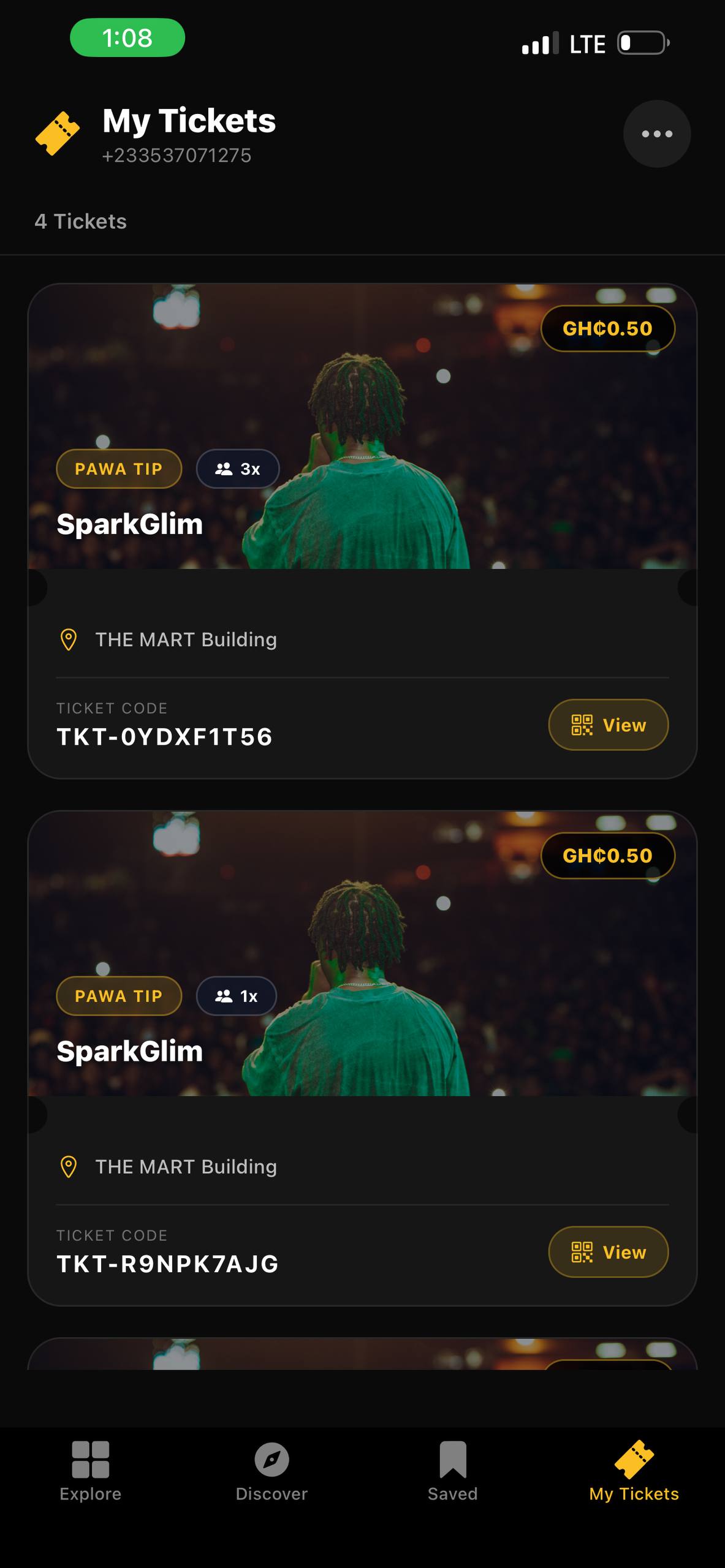
Navigating 'My Tickets' and Transaction Details
The 'My Tickets' section is your primary destination for all active and historical event entries. When you purchase a ticket through the SparkGlim events page, the confirmation is synced immediately to your profile. You do not need to rely on confirmation emails buried in your inbox, as the app serves as your authoritative source of truth.
Accessing Receipts and Transaction References
For every payment made, SparkGlim generates a transaction reference. This is critical for reconciling your bank statements or mobile money (MoMo) logs. To view these:
- Open the SparkGlim app or navigate to your user account online.
- Select the specific ticket or campaign contribution.
- Click on the 'Receipt' tab or 'Transaction Details' link.
- Save the transaction ID or download the PDF receipt if provided by the organizer.
If you encounter a billing discrepancy, always quote your transaction reference number when contacting organizers. This unique string allows them to cross-reference your payment in their own creator dashboard.
Using QR Codes for Seamless Entry
SparkGlim utilizes dynamic QR codes as the standard for event verification. These codes are uniquely generated for each attendee and are tied strictly to your individual account ID. At the entrance, an event staff member will scan this code to validate your ticket in real-time. To ensure a quick check-in process, avoid taking low-resolution screenshots of your QR code, as they can sometimes fail to scan under poor lighting conditions common at outdoor concerts or evening galas.
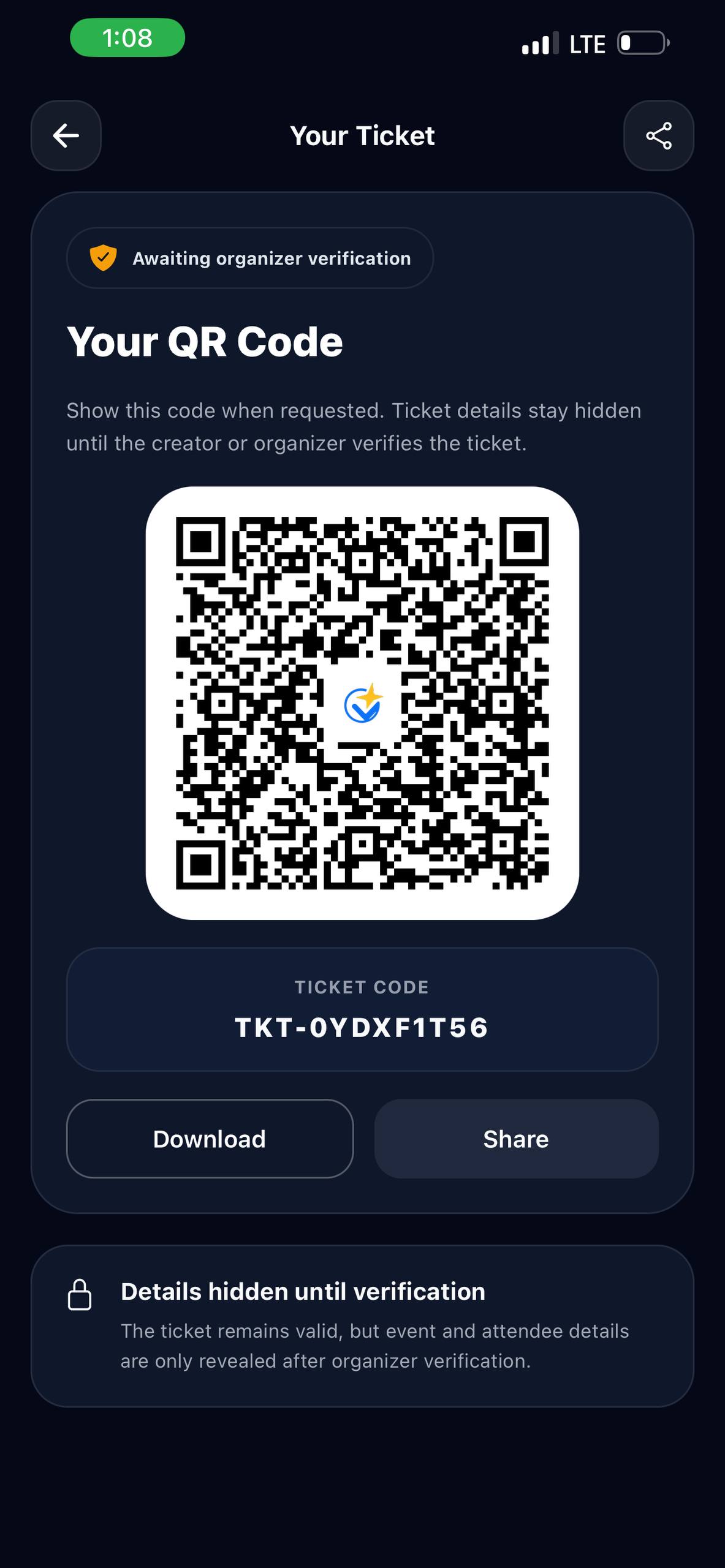
Privacy and Storage Management
Your privacy is paramount. We adhere to strict data handling policies to protect your account activity. You can review our full commitment to your data security at our privacy policy page. Regarding device storage, the SparkGlim application is optimized to be lightweight. While it stores cached versions of your tickets to support offline access, you can clear this cache through your phone's system settings if you need to free up space. We recommend that you never share your login credentials with others to ensure your ticket remains exclusively under your control.
Troubleshooting Common Issues
If you find that your ticket is not displaying or a QR code fails to load, follow this checklist:
- Check Connectivity: Ensure your internet connection is stable or your ticket is already cached.
- Refresh the App: Sometimes a simple restart forces the app to sync with the latest server data.
- Verify Account Login: Ensure you are signed in with the same email address used during the initial ticket purchase.
- Contact Support: If the issue persists, reach out to the event organizer directly via the platform messaging tools.
Conclusion
Mastering the SparkGlim user experience allows you to spend less time managing logistics and more time enjoying the events and communities you care about. By keeping your app updated, keeping your transaction references handy, and utilizing the offline-caching features for your QR codes, you guarantee a professional and smooth entry experience. Whether you are participating in a local community drive or a major concert, your account tools are there to support your journey. Download the latest version of our app at the SparkGlim app page to stay current with all our latest features.
Frequently Asked Questions
Can I download my tickets as a PDF? Yes, most events allow you to save your ticket as a PDF directly from the 'My Tickets' section for printing or offline storage.
Why is my QR code not showing up? This usually indicates a sync error. Please check your internet connection or log out and log back in to refresh your account data.
Is it safe to share my ticket screenshot? We advise against sharing screenshots of your ticket, as the unique QR code can be used by anyone to enter the event, potentially leading to your own denial of entry.
What do I do if I lost my receipt? You can always view and download your transaction history and receipts within the 'Transaction' section of your user profile on the SparkGlim platform.
Article gallery
Frequently asked questions
Can I download my tickets as a PDF?
Yes, most events allow you to save your ticket as a PDF directly from the 'My Tickets' section for printing or offline storage.
Why is my QR code not showing up?
This usually indicates a sync error. Please check your internet connection or log out and log back in to refresh your account data.
Is it safe to share my ticket screenshot?
We advise against sharing screenshots of your ticket, as the unique QR code can be used by anyone to enter the event, potentially leading to your own denial of entry.
What do I do if I lost my receipt?
You can always view and download your transaction history and receipts within the 'Transaction' section of your user profile on the SparkGlim platform.
Found this helpful?



Comments (0)